
Elgato Cam Link 4k Unboxing and Setup

–
If you want sharper video for Zoom calls, livestreams, or YouTube, the Elgato Cam Link 4K is one of the easiest ways to use a DSLR, mirrorless camera, or action camera as a webcam. In this post, we’ll cover what’s in the box, how to set it up, and the most common tips to get a clean, reliable 4K capture. The Elgato Cam Link 4K is a small HDMI capture device that plugs into your computer’s USB port and lets your camera show up like a regular webcam. This is popular for creators because cameras often look far better than built-in laptop webcams, especially in low light and when you want a blurred background. Inside the box, you typically get: The Cam Link 4K itself is compact and built like a USB stick, making it easy to travel with and simple to plug in. Before you start, make sure you have: Also check if your camera can output “clean HDMI.” If it shows focus boxes, battery icons, or menus on screen, you may need to change camera settings to remove those overlays. Turn off on-screen displays in your camera menu so you don’t see icons or settings in your video feed. For most video calls and streaming, 1080p is a great balance of quality and performance. If your workflow supports it, 4K can look sharper, especially for product demos or wide shots. Even a great camera needs good light. A simple soft light in front of you can make a big difference and reduce grainy video. If you plan to stream or record for long periods, use a power adapter or a dummy battery so the camera doesn’t shut off mid-session. This capture device is ideal for: The Elgato Cam Link 4K is a simple upgrade that can dramatically improve your on-camera quality. The unboxing is minimal, the setup is fast, and once your camera is configured for clean HDMI, it works like a plug-and-play webcam solution. If you already own a good camera, this is one of the easiest ways to get professional-looking video without a complicated setup.Elgato Cam Link 4K Unboxing and Setup: Turn Your Camera Into a High-Quality Webcam
What Is the Elgato Cam Link 4K?
Unboxing: What’s Included
What You Need Before Setup
Elgato Cam Link 4K Setup (Step-by-Step)
Plug your HDMI cable into your camera’s HDMI output, and connect the other end to the HDMI input on the Cam Link 4K.
Connect the Cam Link to a USB port. If space is tight or the device feels crowded, use the included extension cable.
Set your camera to video mode if needed. Confirm it’s outputting a supported resolution and frame rate (many people use 1080p for calls and streaming, and 4K when they need maximum detail).
Open your video app (like Zoom, Teams, OBS, or your recording software) and choose Cam Link 4K as the video source.
Adjust focus, brightness, and white balance on the camera. For steady results, many creators prefer manual settings so the image does not change during a call.Best Settings for a Clean, Professional Look
Use Clean HDMI Output
Choose a Stable Resolution and Frame Rate
Control Lighting
Keep the Camera Powered
Common Troubleshooting Tips
No Signal or Black Screen
Overlays Showing on Screen
Camera Overheating or Shutting Down
Lag or Choppy Video
Who Is the Elgato Cam Link 4K For?
Final Thoughts
–
Video Thumbnail
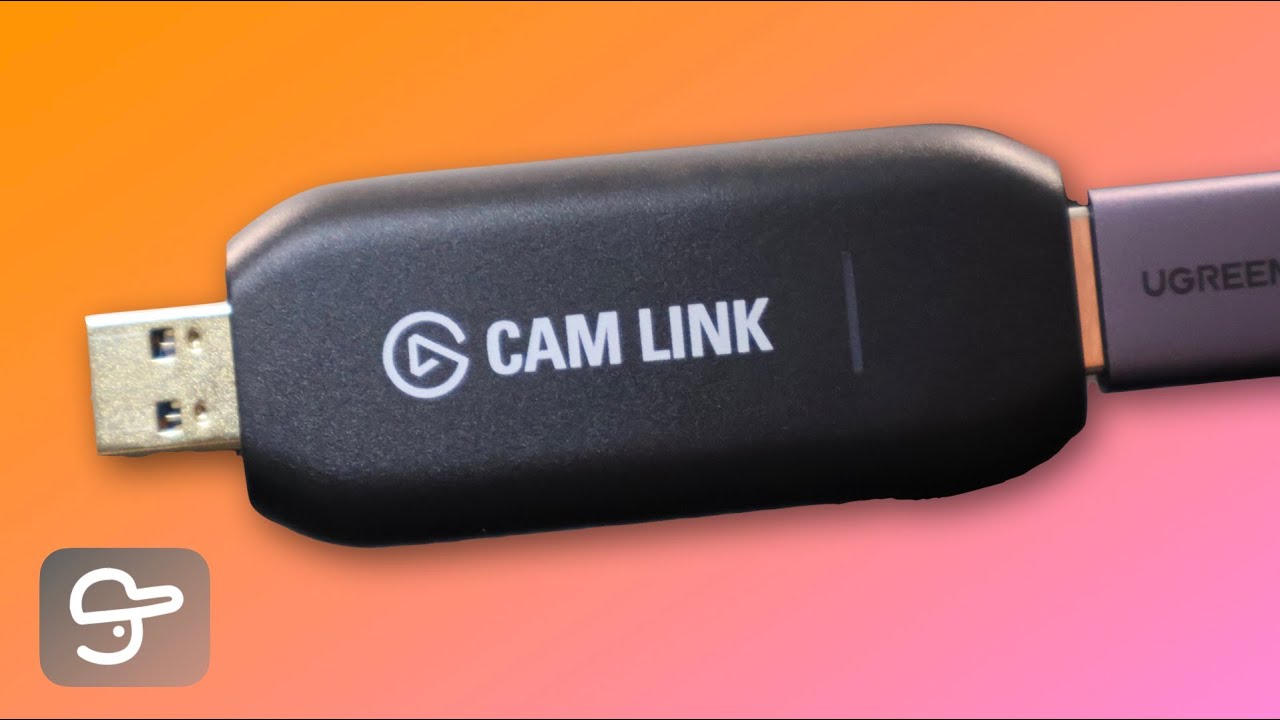
This post has been automatically generated using services to reformat and enhance content based on the video’s transcripts. Some information may be incorrect and may not reflect undermycap’s values or views.


