
Create Eye-Catching Thumbnails For YouTube!

- 🎨 Use Keynote to make thumbnails: Keynote can be used to create custom YouTube thumbnails quickly, even though it’s made for presentations.
- ✂️ Remove image backgrounds in one click: Use Format > Image > Remove Background to cut out products or objects fast without Photoshop.
- 🟩 Create a strong background with gradients: Add a square shape behind your image and use a green gradient fill to make the thumbnail look bright and “healthy.”
- 🌑 Add depth with shadows and layering: Use shadows and the arrange tools to make items “pop” off the background and look more 3D.
- 🅰️ Make bold text and add branding: Add large white text, choose a stronger font, and (if you want) place your logo in the corner for a consistent look.
Create Eye-Catching YouTube Thumbnails in Keynote (Fast and Free)
If you want more clicks on your videos, your YouTube thumbnail matters a lot. The good news is you don’t need expensive software to make a great thumbnail. You can create custom, professional-looking thumbnails using Keynote, and you can do it quickly.
Below is a simple, step-by-step way to make eye-catching thumbnails in Keynote, based on two real examples: a health-focused food thumbnail and a product unboxing thumbnail.
Why Use Keynote for YouTube Thumbnails?
- It’s simple: Keynote is easy to learn, even if you’re new to design.
- It’s fast: You can build a strong thumbnail in just a few minutes.
- It has powerful tools: Features like background removal, gradients, shadows, and text styling are built in.
- It saves money: You can avoid paying monthly fees for design software.
Keynote Thumbnail Example #1: Health-Oriented Food Thumbnail
This first style is great for videos about food, health, fitness, habits, or “top 10” lists. The goal is to create a clean image, a bold headline, and a bright background that helps the subject stand out.
Step 1: Remove the Background (In One Click)
One of the best Keynote tools for thumbnail design is background removal. If you have a photo of an object (like a product or plate of food), you can cut it out instantly.
- Select your image.
- Go to Format.
- Click Image.
- Select Remove Background.
Keynote removes the background right away, leaving you with a clean cutout that’s ready to place on any thumbnail background.
Step 2: Build a Strong Background with a Gradient
Instead of just changing the slide color, create a background shape and style it. This gives you more control and makes the thumbnail look more modern.
- Add a square/rectangle shape and stretch it to cover the whole slide.
- Use a Gradient Fill.
- Pick two colors that match your topic (for a health theme, green works well).
- Move the shape behind your main image using Arrange (send backward).
A gradient background is simple, but it instantly makes your thumbnail look more vibrant and professional.
Step 3: Add Depth with Shadows
Flat thumbnails can look boring. A small shadow can make your main subject look like it’s lifting off the background.
- Select the cutout image.
- Turn on Shadow.
- Adjust blur and offset if needed, but keep it subtle.
Step 4: Add Big, Clear Title Text
Thumbnails should be easy to read on a phone. Use short words, big fonts, and high contrast.
- Add a text box.
- Increase the font size (large sizes like 200–250+ can work well).
- Set the text color to white for strong contrast.
- Choose a bold, clean font (a popular choice is Bebas Neue).
Example title idea: “10 Health-Focused Foods”. It’s clear, specific, and fits a common YouTube format.
Optional: Extra Effects (Use Carefully)
- Layering effect: Move the subject slightly over the text so it looks layered and more dynamic.
- Text shadow: You can add a shadow to the text, but don’t overdo it. Heavy shadows can make the thumbnail look messy.
Keynote Thumbnail Example #2: Product Unboxing Thumbnail
Unboxing and review thumbnails often work best with a simple layout: product cutout, bold text, clean background, and consistent branding.
Step 1: Remove the Background from the Product Photo
Use the same one-click background removal tool:
- Select the product image.
- Go to Format → Image → Remove Background.
This is a quick way to get a clean product cutout without Photoshop.
Step 2: Add a Branded Gradient Background
If you want your channel to look consistent, use the same colors across your thumbnails. In Keynote, a gradient can become part of your “thumbnail style.”
- Create a full-slide rectangle.
- Add your gradient colors.
- Send it behind the product image.
Step 3: Add Bold Text (Unboxing/Review Style)
Keep the text short and strong, like:
- “UNBOXING”
- “HONEST REVIEW”
- “WORTH IT?”
- “NEW SPEAKER”
Use a bold white font and scale it up so it’s easy to read quickly.
Step 4: Add Your Logo for Consistent Branding
A small logo in a corner can help viewers recognize your videos. Add a simple logo image to the slide and place it in the same spot on every thumbnail to build a consistent look.
Simple Tips for Better YouTube Thumbnails
- Use high contrast: Bright subject + darker background (or the other way around) helps your thumbnail stand out.
- Keep text short: A few words is usually enough.
- Make the main subject big: Small objects get missed on mobile.
- Stick to one style: Consistent colors and fonts help your channel look more professional.
- Don’t over-edit: Clean and readable often performs better than busy designs.
Final Thoughts
You can create eye-catching YouTube thumbnails in Keynote without paying for expensive design tools. With one-click background removal, bold text, gradients, and simple shadows, you can make thumbnails that look clean, modern, and clickable.
If you want to improve your click-through rate, start by building a consistent thumbnail style and keep practicing. Even small upgrades in your thumbnail design can make a big difference over time.
## Introduction Hey everybody, it’s Josh from Cap Unpacked. Today I’m going to show you how to make your very own custom thumbnails in Keynote. Now, I know what you’re thinking: Keynote is used for presentations. However, I’ve been making thumbnails for the past five years with Keynote, and many of my videos have actually done really well. So today, I’m going to show you how to make thumbnails using Keynote. Without further ado, let’s get straight into it. ## Thumbnail Example 1: Health-Oriented Food Thumbnail In this video, I’m going to show you how to make a health-oriented thumbnail using some food I took a photo of on holiday, and also a brand-new product I purchased. You can see this brand-new Sonos speaker. A lot of people use Photoshop and other programs to cut the image out of the background, but I’m going to show you how to remove that in literally one click in Keynote. ### Remove the Background (One Click) What you want to do is go to **Format**, click on **Image**, and then hit **Remove Background**. Just like that, the whole background is gone. The whole image is perfectly cut out, which makes our life a whole lot easier when making thumbnails. ### Set Up the Background I’m going to readjust this—just slide it to the side—and I’m going to delete everything else on the slide so it’s literally just the white box and the image of the plate. Instead of changing the color of the background directly, I’m going to add a normal square shape and color-fill that with an advanced gradient. It looks a bit disgusting right now, but I’m simply going to change the gradient. Actually, let’s just go to a gradient fill—that will make our life a lot easier. I’m going to select the first gradient color and set it to green. Then, I’ll set the second gradient color to a darker green. You can see it’s kind of a health-oriented color. Then we’ll use the **Arrange** button in the top right to move this backward and put the food in front of it. It looks absolutely amazing so far. It makes the image pop out, and it makes the background look vibrant. ### Add Depth with Shadows What I like to do in thumbnails is add a bit of depth. I use shadows to make the item look like it’s not flat on the background—like it’s hovering a bit. So I like to turn on shadows, and you can customize them however you like. If you don’t want too much blur or you want less offset, you can adjust that, but I’m just going to leave it as-is for now. ### Add the Title Text Now you want to add your title. I usually click on the text box at the very top of the screen and place it here. It is quite small, but you can simply select it, click on **Text**, and set the size to, let’s say, 250 for now. I think that should be good. I’m just going to come up with a random title: “10 Health-Focused Foods.” That’s kind of related—it’s kind of healthy—so we’ll put that there for now. Obviously, we’re going to change the font because it looks pretty crappy right now. First, I’ll change the color to white, because white looks quite nice on thumbnails and it pops out a lot. Then I’ll change the font to one of my favorites, Bebas Neue. It’s one I use on almost all of my thumbnails. I’ll set the size slightly higher so it stands out more. As you can see already, the thumbnail looks absolutely amazing. ### Optional: More Effects If you want to add a few more fancy features, you could move the plate over the wording to make it look like the plate is on top of the font. I know a lot of people like that depth effect. You can also add shadows to the text to make it pop as well. If you do want that, you can—but I think it kind of wrecks the thumbnail a bit. Well, I guess it makes it look okay. Maybe we’ll leave the shadow on. And there you have it: we’ve made a thumbnail within five minutes, I think, and it’s a pretty good thumbnail. I know you can get a lot better if you use Photoshop, but through Keynote, it’s pretty impressive that you have all these features. ## Thumbnail Example 2: Product Unboxing Thumbnail (Speaker) Let’s move on to the next one. I’m going to make an unboxing-style thumbnail for this speaker. I’m going to use the same theme that I use for my Cap Unpacked channel—the one we’re using right now. ### Remove the Background and Add a Theme First of all, I’m going to remove the background, and you can see it did it straight away. I can’t believe how awesome that feature is. So we’ll put the speaker there, and we’ll add a nice background—an advanced gradient fill. Oh, it’s already got my colors automatically; that’s pretty cool. So we’ll do that. ### Add Text and Branding I like to add white font, which I use on lots of my videos. If I was doing a review, I’d change that up a little bit—maybe make it like 400. That is a really bad photo I took of the speaker. I don’t have any other good photos of this speaker, but you can kind of see where I’m coming from: you can have your font here, your image here, and then what I like to do is add my little logo in the corner, which is also on Keynote. You can see that thumbnail stands out really well. And this green one stands out really well, too. ## Wrap-Up So yeah, I guess that’s how you use Keynote. You can use all the other features too, but I thought I’d just sum it up in a nutshell to make it easier and show you that you can actually make thumbnails through free programs instead of having to pay, like, 79 Australian dollars a month for Photoshop. If you did enjoy the video, don’t forget to leave a like and subscribe, and I can’t wait to see you in the next video. See ya.
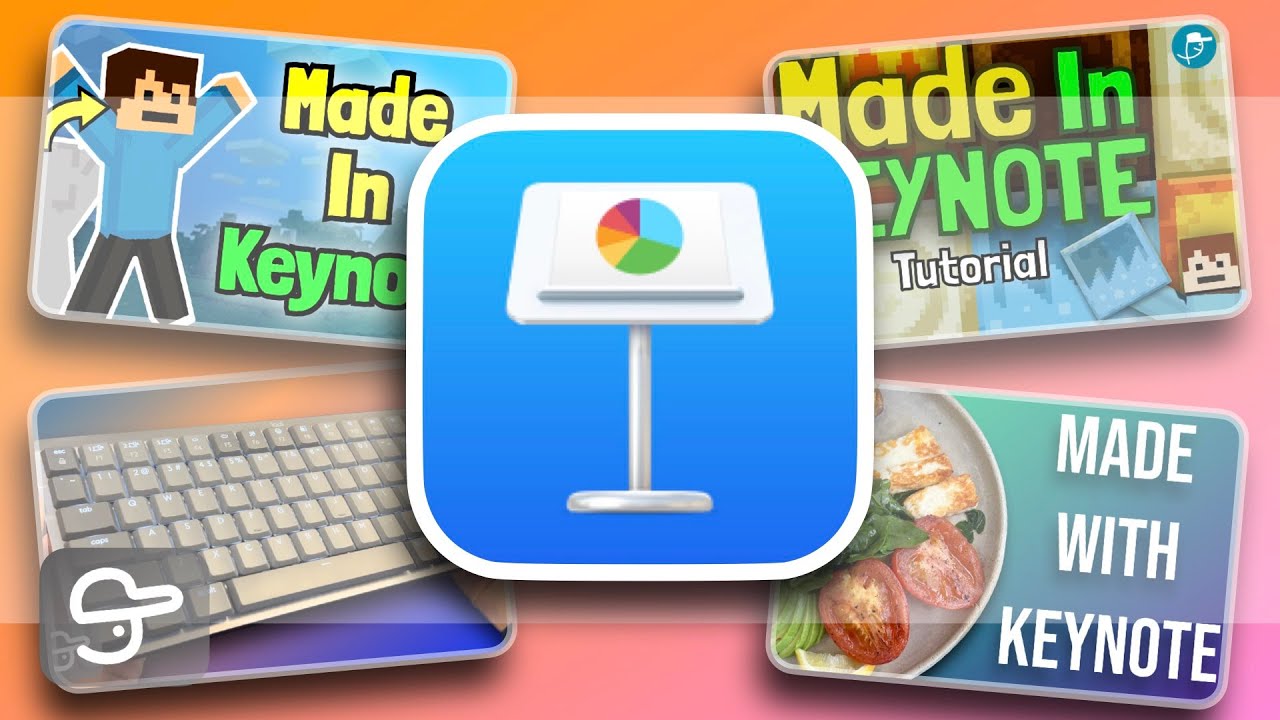
Video Thumbnail
This post has been automatically generated using services to reformat and enhance content based on the video’s transcripts. Some information may be incorrect and may not reflect undermycap’s values or views.


